Mobile Tower Defense Controls: Playing Well on Touch and Keyboard
All fifteen games on Tower Defense Hub run in the browser and work with touch, mouse or keyboard. The controls are the same in every game, so once you learn them in one you can play any of the others without relearning anything. This guide covers touch controls for phones and tablets, the keyboard shortcuts for desktop, and practical tips for playing comfortably on a small screen.
Touch controls: the two-tap build
Building always takes two taps:
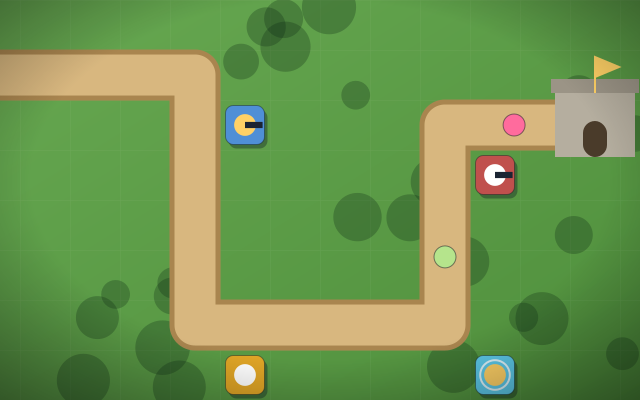
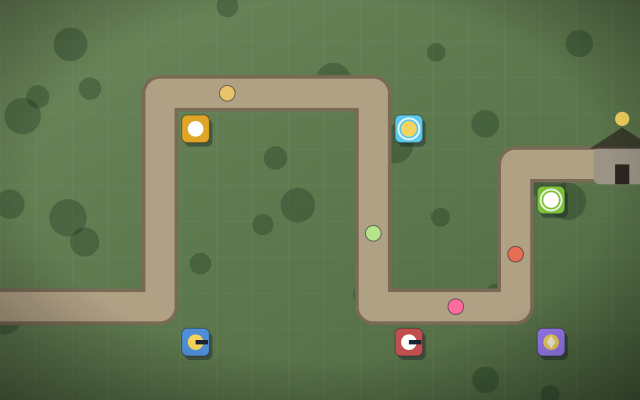
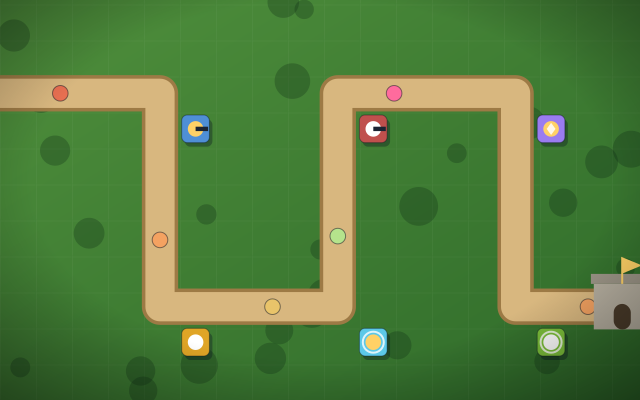
- Tap a tower button in the build bar. The tiles where you can build that tower are highlighted.
- Tap a highlighted tile. The tower is built there.
This design avoids the fiddly drag-and-drop that is easy to fumble on a phone. You can look at the highlighted tiles before committing, and if you change your mind, simply pick a different tower button or cancel.
Hover is never required
On a desktop, many games show information when you hover the mouse over something. Touch screens have no hover, so our games never depend on it. Everything you need, such as costs, upgrades and targeting, is available by tapping.
The tower panel
Tap any tower you have already built to open its panel. From there you can:
- Upgrade it. Every tower has three levels, and the upgrade cost is shown on the button. In Robot Defense, level 4 offers a choice of two specialisation branches.
- Sell it for a 70 % refund of everything spent on it, including upgrades.
- Change targeting: First, Last, Strongest, Weakest, Closest or Fastest. Support and aura towers have no targeting.
Because selling returns only 70 %, it is worth double-checking before you tap Sell, especially on a small screen where the buttons are close together. Our tower targeting strategies guide explains which mode to pick.
Speed and pause
Every game offers 1×, 2× and 3× speed plus Pause/Resume. On touch these are on-screen buttons; on a keyboard, F cycles speed and Space pauses and resumes.
- Use 2× or 3× for early waves you know you can handle comfortably.
- Drop to 1× for boss waves and new enemy types. Bosses telegraph dangerous abilities with a warning marker, which is easy to miss at 3× on a small screen.
- Pause whenever you need to think or when you are interrupted. A phone notification is not a reason to lose lives.
The next wave starts only when you press Start Wave (or N on a keyboard). Quick Defense and Endless Defense also offer auto-start; on a phone, you may prefer to leave it off so you always have time to build between waves.
Keyboard shortcuts for desktop
If you play on a computer, the keyboard is often faster than the mouse:
| Key | Action |
|---|---|
| 1–6 | Pick a tower type |
| Esc | Cancel / deselect |
| Space | Pause / resume |
| F | Cycle speed |
| N | Start next wave |
| U | Upgrade selected tower |
| Delete / Backspace | Sell selected tower |
| T | Cycle targeting |
| M | Sound on / off |
| Arrow keys | Move the keyboard cursor over the map |
| Enter | Act on the cursor tile (build / select) |
The arrow keys and Enter mean you can play entirely without a mouse: pick a tower with a number key, move the cursor to a tile, and press Enter to build. The same cursor lets you select existing towers, then U, T or Delete to upgrade, change targeting or sell.
Hero Defense extras
In Hero Defense, you move the Warden by tapping or clicking the map; he attacks automatically. His four abilities have cooldowns and are listed with the keys Q (Shockwave), W (Frost Field), E (Rally) and R (War Cry).
Playing on a phone: practical tips
Portrait or landscape?
The game canvas scales to fit your screen, so both orientations work. They suit different situations:
- Landscape usually shows the map larger on a phone, which makes tiles bigger and easier to tap accurately. It is the better choice for maps with several lanes, like Medieval Castle Defense or Desert Defense, and for placing towers precisely in Maze Defense.
- Portrait is convenient for one-handed play in shorter games with a single path.
If you find yourself mis-tapping tiles, try rotating to landscape before anything else. If your device has rotation lock on, you will need to turn it off to switch.
Other tips
- Start with a touch-friendly game. Quick Defense has big touch targets, three towers and 3–7 minute sessions, which suits a phone well.
- Build during the build phase. Tapping precisely is easier when nothing is moving, and there is no time limit before you press Start Wave. In Maze Defense you also cannot build on a tile an enemy is standing on or entering, so mid-wave building there is more restricted.
- Check the panel before upgrading. Tap the tower, read the upgrade cost on the button, and only then tap Upgrade. It takes a second and prevents spending gold you meant to save for a different tower.
- Use targeting on the panel, not new towers. If one tower keeps ignoring a dangerous enemy, changing its targeting mode from the panel is free, while building another tower is not.
- Turn sound on or off from the sound toggle (or M). Sound is generated in the browser, so there are no audio files to download.
- Your progress stays on the device. Best scores and settings are saved in the browser's local storage, so play in the same browser to keep them.
Where to start
For a first session on mobile, try Kingdom Defender or Quick Defense, both labelled easy with one path. When the controls feel natural, browse the casual tower defense category or read how tower defense games work to deepen your understanding.